Sunday, 1 July 2018

FT Search Manager - now FREE for Personal use

If you're not happy with the standard Notes search tools, here's something that might help - our FT Search Manager product is now FREE for personal use.*

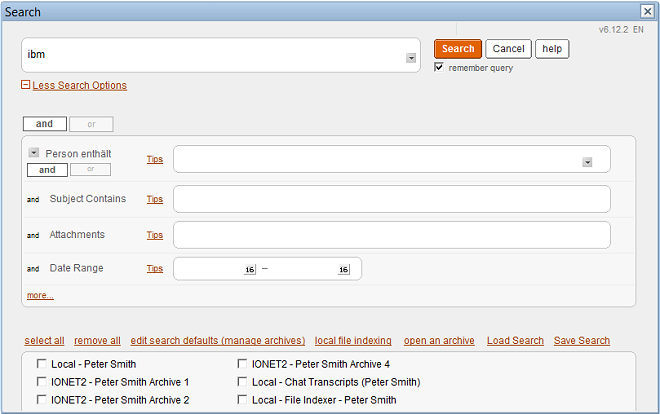
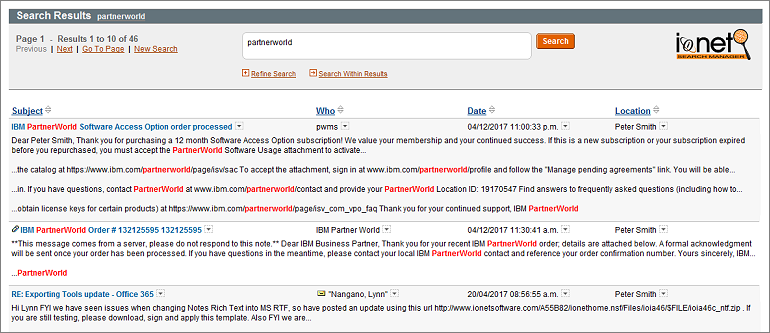
The tool allows users to search multiple Notes databases (Mail & Archives, Chats, Applications, Quickr etc) and File Systems simultaneously, providing easy navigation through the vast amounts of data that can accumulate in a Notes environment.


Notes Mail Search
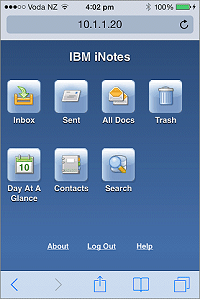
Mobile Home


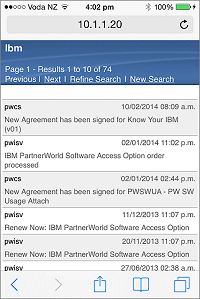
Notes Mail Results
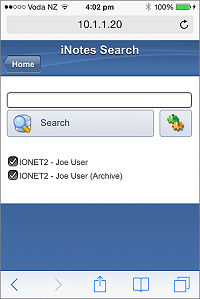
Mobile Search


By improving user productivity, the IONET FT Search Manager makes better use of your Notes environment - 100,000 users can't be wrong.

For more information or to download a trial copy, please visit https://www.ionetsoftware.com/search.

* Personal use is defined as a user searching their personal Mail and Archives, and less than 10 users per company.


Monday, 25 June 2018

Providing proper iNotes search functionality

In the iNotes environment, Mobile Clients have no search capability at all, and Full Clients can only search the mail file that's currently in use.

Traveler Clients have only basic search functionality, and usually synchronise a subset of data.

That's fine for recent mail, but how do you find and use an email you received 6 months ago? By scrolling until you find it? That's a waste of time.

The FT Search Manager allows iNotes users to easily search ALL their Mail & Archives (and other databases, e.g. Shared Mail), via Mobile Client or Full, then use the results as per normal mail.

This makes ALL Mail & Archives available to Mobile devices - regardless of date or location - greatly improving the Mobile experience.


Mobile Home
Mobile Home
note new search icon
Mobile Search
Mobile Search
all mail & archives are available
Mobile Results
Mobile Results
results are used like normal mail


Give Mobile users a better way to use their existing Notes data and make better use of your Notes investment - 100,000 users can't be wrong.

By improving user productivity, the IONET FT Search Manager pays for itself in next to no time.

For more information or to download a trial copy, please visit https://www.ionetsoftware.com/search.

Monday, 10 October 2016

Notes to Office 365, On Demand

Our Archiver for Notes product now also exports Notes Mail & Archives directly to Office 365, including On Demand.

This means that in a migration, Administrators might choose to migrate only recent Mail to Office 365 (e.g. the last 2 weeks, last 6 months etc), but also allow users to search and migrate any important older mail that they want to keep - employment contracts, legal information, personal mail, contact information etc. 

This makes all historical Notes Mail available to users, without needing to migrate TB of unnecessary data. And this functionality can be used for as long as required.

For any other requirements, the tool also archives Notes Mail and Applications to NSF, PDF, XML, HTML and PST.


1. Administrator Archiving to O365;


2. Users can then search and export any further mail they require, from their Mail or Archives;


If you'd like to try this, please just download the demo version, then request a license key.

And for more information, please visit our Archiving page.


Tuesday, 19 April 2016

A new approach to migrating away from Notes

If you're migrating away from IBM Notes, here's a new option;

Instead of migrating ALL your Notes Mail data, migrate only the last X years worth (using any tool you want, but hopefully ours), and leave one Domino Server running HTTP to allow users to search and export their older mail, WHEN and IF they need it.

This saves migration resources, as users only export the mail they actually require. Users can search their Notes Mail & Archives via Browser whenever they want, as many times as they want, and export search results to PST, PDF, HTML or EML. For example a user could choose to export all their mail to the HR department, from a specific person/company, with the word 'legal' in the subject etc.

It also acts as a safety net - exporting the last X years of email provides 80% of what's required, and this approach returns the remaining 20% without needing to export TB of unnecessary data.

Powerful search functionality makes it easy for users to find the data they want, and they can export as many times as required.

The following screenshots show data exporting using a Web Browser (the same export options also apply in the Notes Client search).


1. Search
Each user sees only their own Mail and Archives. The Administrator controls options, labels, logos, and can modify the UI using CSS.


2. Export

From the results page, users select results to export, and the required format. The Administrator can show/hide each export format.


3. Status

A status of the export is shown in real time.


4. Fixes

If document fixes are required (e.g. to fix invalid email addresses), these are performed automatically.


5. Complete

Then the fixes re-exported.


6. Download

To finish, users simply download the exported files.


For more information, demos and downloads, please visit the FT Search Manager Migration Page.


Monday, 22 February 2016

Saving Notes Search results to PDF

At the start of this year, we added PDF support to our FT Search Manager product.

This allows Notes search results to be saved directly as PDFs, either after a Discovery/Compliance search, or after normal Mail & Archive searching.

For example, let's say you have a legal requirement to provide copies of all email sent between your environment and 123.com during 2015.

1. Specified power users can run a Discovery/Compliance search across all mail files and archives in the environment, select the desired results, and export them to PDF.

2. Individual users can perform their own searches in response to an information-gathering request, select the relevant email, and export it to PDF.


Metadata is captured, the PDF format is easily controlled via stylesheets, and Administrators manage options for naming PDFs, export locations etc.

The same functionality applies to our Archiver for Notes product, which can now export Notes data directly to PDF (as well as NSF, XML, HTML, PST etc). So in the above example, Administrators could also create archiving criteria with an @formula and archive all matching emails to PDF, leaving the source data untouched.


For more information, demos & downloads, please visit the FT Search Manager page.

Thursday, 1 October 2015

IONET Archiver v4 - Improving your Native Notes Archiving

IONET Software are pleased to announce v4 of our Archiver for Notes product, which now includes support for native Notes archiving, even when it's already in use.

This means that for a big reduction on our normal pricing, you can use our archiving toolset with native Notes archiving.

Why would you want to do that? To make more efficient use of IT resources, find out what's happening in your environment, and - more importantly - save your users time.


What you get from Native Notes Archiving;
  • Fast, large-scale moving of data.
  • Easy management via Archiving Policies.
  • Support by IBM.

But what you DON'T get is decent tools to use that archived data, or even tools to tell you what's actually being archived. This means users spend a lot of time trying to find and use their archived data, and that can be improved.


What you can add with the IONET Native Archiving Toolkit;
(click images for a larger version)

   Simultaneous Searching across ALL Mail & Archive Databases via Notes, iNotes (including Mobile) or Browser. This makes it easy for users to find and use their data, regardless of its location.
    Discovery Search across all Mail & Archives, for Admins, Power Users, Legal Departments etc.
   The ability to natively archive Mail-In Databases.
   User Functionality like 'Archive Selected Documents', 'Restore Documents', and 'Open Archives'.
   Reporting and Charting of Archiving performance, e.g. Volume of data archived, Number of Docs archived, Production vs Archive Size Ratios etc.
   Tools to migrate local User Archives.
   Administration Tools such as ACL Synchronisation, limiting access to Archives, Archive Database naming, Archive Database moving etc.


What you miss out on by not using our full Archiving Solution;
  • Up to 10 Archiving Criteria, including folders, dates, document size, and @formulas.
  • Intelligent Quotas, e.g. gradually reducing databases sizes to the defined limit.
  • The ability to export data to different formats, e.g. HTML, XML and PST.
  • The use of Archive Stubs, to refer Notes and iNotes Clients to the archived document.
  • Two-stage archiving, e.g. archiving from archives.
  • Archive Housekeeping, such as automatic archive creation, rotation and expiry.
  • Archive Timing functions, so you don't over-run your archiving window.
  • The ability to archive duplicated mail documents.
  • The ability to compress attachments during archiving.
  • The ability to archive different documents to different databases, e.g. all documents in 'ACME' folders into the 'ACME Project' archive.
  • The ability to archive custom applications.
  • Flexibility options, e.g. protect certain documents, synchronise documents (such as lookup documents), set fields on documents during archiving, run custom agents before/after archiving and restoring, or before/after creating archives etc.

Key Features;
  • Allows Users to easily find and use natively archived data, via Notes or iNotes, saving them time.
  • Allows Administrators to manage the archiving environment, performing common tasks and migrating local archives.
  • Gives Management visibility to archiving effectiveness via Reporting.
  • Allows native archiving of Mail-In Databases.
  • Adds Discovery Search functionality to your Mail & Archive environment.
  • Builds on Native Archiving functionality.
  • Blends seamlessly into your Notes/Domino environment.


To find out more, please visit our Native Archiving Toolkit Page.

Monday, 22 June 2015

Exporting Notes Mail, Applications & Quickr to XML

Earlier this month, our Archiver for Notes product was extended to export Notes Mail, Applications and Quickr to HTML, in addition to exporting Notes Mail to Internet Formats and PST, and normal NSF archiving.

Exporting to HTML occurs via archiving to DXL, then transforming that DXL to HTML via XSLT Stylesheets. This allows storage of Notes data as static, non-proprietary HTML.

This process now
extends further to transform DXL to XML, ready for use in other products. Example XSLT Stylesheets to do this are stored as Pages, and you can modify these or add your own.

This means you can export some parts of your Notes environment (e.g. Mail) to common internet formats or PST, other elements (e.g. old applications, IBM Quickr) to HTML, and  specific newer elements (e.g. application data less than 5 years old) to XML for migration to other platforms.


The process is;

1. Select your target data, export method and stylesheet.


2. Stylesheets are stored as Pages in the Archiver Config database, so you can use these, customise them, or add your own.


3. Notes data is then exported to the target XML.


You can choose to leave the Notes data intact after exporting, meaning you can run the process as many times as you want.

For more information or a free, no-obligation trial version, please see the IONET Archiver for Notes.

Monday, 8 June 2015

Archiving from Notes to HTML

Since March, it's been possible to use our Notes Archiving tool to archive Notes Mail to Internet Formats and PST, as well as perform normal Notes (to NSF) archiving.

We've now added the ability to archive Notes Mail and Applications to HTML and DXL/XML as well.

This allows Administrators to easily target specific Notes data, then process it based on their requirements, e.g. archiving to Notes itself, storing it in a non-proprietary format like HTML or XML, or migrating it for use with another application.


For example, to migrate to Outlook;

1. Your first archive criteria might first remove all mail with the phrase '[SPAM]' in the Subject.
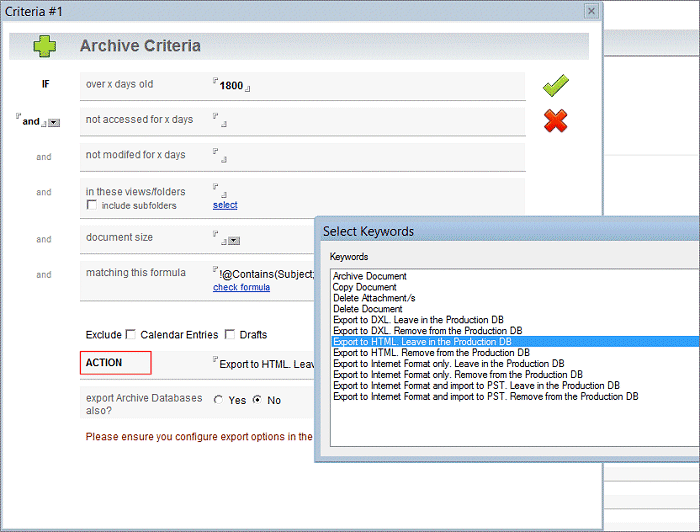
2. Your second criteria might then archive all historical mail over 5 years old, and without the phrase '[HR]' in the Subject, to read-only HTML.
3. Your third criteria might then archive all mail 1-4 years old to PSTs named "Username" Notes Mail 2011 - 2014.
4. Your fourth criteria might archive all mail less than 1 year old to PSTs named "Username" Notes Mail 2015.

OR;

1. Archive all mail over 1 month old to PSTs named "Username" Notes Mail, leaving the original mail intact. This can be done over time without users even being aware of it, in order to migrate the majority of user data (as mail doesn't tend to change too much after the first month).
2. At a designated cutover date, archive any changes plus the remaining data, resulting in all Notes Mail being available in PSTs.

OR you could;

1. Select custom Notes applications and archive all data over 6 years old to HTML.
2. Archive all remaining data to DXL/XML, transform it via XSLT, and use it in another application.


There are multiple customisation options, and you can modify our stylesheets to suit your own processing requirements.


1. Select Archive Criteria (or you can just archive the entire database).


2. Exported Mail Results in HTML.

3. Exported Application Results in HTML.


4. Exported Mail Results in PST.


For more information or a free, no-obligation trial version, please see the IONET Archiver for Notes.

Monday, 27 April 2015

New Result Options in the FT Search Manager

For many years now, the FT Search Manager has been presenting search results in table format, like a Notes View;


This is useful because it allows additional functionality like re-sorting results by column, then 'Jumping To' results starting with a specific string;


It also allows re-searching by Facet, as show here with a Date facet;


However some users rightly complained that they found the spacing on large screens difficult to navigate, and when we looked at common web search engines, they had a point. Those search engines all truncate result widths at 100 characters or less.


Therefore we've allowed users to (optionally) select a different result format. Like all the other options, Administrators can default it to their preference then prevent it being changed, or let users decide.

This then displays results truncated in a 'list' format, with the UI being customisable as usual;

Re-sorting results by column and facet-based searching is no longer possible, but you can still perform other functions, like selecting & processing results (and you can define your own processing options also);

For more information, demos & downloads, please visit the FT Search Manager page. 

Friday, 24 April 2015

Removing the clutter: De-duplicating Mail Search results

In general, mail files contain a lot of duplicated data, due to the 'Reply With History' function. 

So if you search for a phrase in the first email of a thread, you'll probably receive results from ALL the other emails in the thread as well, which clogs up the result set and makes it harder to find your target.

The IONET FT Search Manager now optionally allows users to de-duplicate mail results, displaying only the latest entry in the thread, containing all information from the rest of the thread.

This makes it much easier to find target data, as you don't have to wade through a lot of very similar, repeated results. Of course you can still search normally if you're looking for a specific email.

Without De-Duplication


With De-Duplication


You can also use our 'Navigate to Query' option to automatically move to the first instance of the search term used, which speeds up the target identification process.

And seeing as email is person-person communication, specifying a name in the query (or a domain name) increases search accuracy significantly.


Try it out free of charge and with no obligation, and we think you'll be surprised at the results.

The IONET FT Search Manager - Targeted Notes searching

Thursday, 19 March 2015

Archiving directly from Notes to Microsoft Outlook

IBM (Lotus) Notes is an excellent product, but it's inevitable that some users will eventually migrate to other platforms.

As well as archiving to NSF, the IONET Archiver for Notes now also archives directly to PST and common internet formats, allowing you to easily manage your migration to a new platform.

Archiving runs on the Domino Server and exports Notes Mail, Archives, Calendars, Tasks, Contacts and Journals to internet standard formats (*.eml, *.ics, *.vcf etc), then optionally imports to PST, ready for Microsoft Outlook. Full fidelity is provided for attachments, graphics & doclinks, along with comprehensive archiving options.

For example, to tidy up the environment, you could first archive all mail over 2 years old to NSF. You could then archive all other mail over 1 month old to PST, without removing it from Notes Mail. This processes the majority of data without affecting users. Finally, on the day of the cutover, archive all remaining mail to PST. Users then just open their fully populated PSTs in Outlook the following day, without any mail interruption. Alternatively, use more advanced constructors like @Formulas to be extremely specific about what data to remove, what data to archive to NSF, and what data to migrate to PST.

To allow users to migrate their own local mail and archives, please see the IONET NSF Exporter tool instead.

Default Settings


Archive Criteria


Key Features
  • Automatic Setup & Operation, including product updates.
  • Profile driven for easy management of multiple users and databases.
  • Archives to NSF, Internet Formats (*.eml, *.ics, *.vcf etc), and PST.
  • Scalable to any Organisation size.
  • Can be used as a Migration tool, one-off or ongoing.
  • Fully supports iNotes users, including Mobile iNotes.
  • Archives any Notes database, including Mail, Applications and Quickr.
  • Multiple Archive Criteria per database, using any combination of document size, age, last modified date, last accessed date, View/Folder, or @formula.
  • Optionally replaces archived documents with stubs, iNotes compatible.
  • Simultaneously searches across production and archived data, via Notes Client, iNotes and Tablet/Smartphone.
  • Discovery Search across all Production & Archive databases.
  • Comprehensive Graphical Reporting.
  • Multiple customisation options.
  • Multiple character set support.
  • Multiple language support.
  • Fully supports offline/remote users.
  • DAOS compatible.


For more information, downloads and demos, please visit the IONET Archiver for Notes page.

Monday, 9 March 2015

New Export tool for Notes Mail & Archives

IBM (Lotus) Notes is an excellent product, but it's inevitable that some users will eventually migrate to other platforms.

The new IONET NSF Exporter allows users themselves to export local or server-based Notes Mail, Archives, Calendars, Tasks, Contacts and Journals to internet standard formats (*.eml, *.ics, *.vcf etc), then optionally to PST, ready for immediate use in Microsoft Outlook.

For an Administrator-run export via the Domino Server, please see the Archiver for Notes.

For example, after migrating to Exchange, users may still have local Notes Mail archives left on their PCs. The NSF Exporter allows them to migrate those databases to PST, at their convenience, and without requiring Server resources.

The tool requires a Notes Client only, exporting in the background. It can export local or server-based databases, running locally or from a Server.

Full fidelity is assured, including attachments, graphics & doclinks, for Mail, Calendars, Tasks, Contacts & Journals, with a range of options providing full control for the Administrator.

For a quick preview, please click the Thumbnails, then navigate around.

Default Settings
Default Settings

Export Settings
Export Settings


Description
The NSF Exporter allows users to export multiple Notes Databases to internet file formats, then optionally convert those files to PST. The tool can create one PST per NSF, or new PSTs when the existing export PST reaches a specified size.

Users create an export definition for each Notes Database they want to export, specify the export settings they prefer (e.g. skipping documents older than X days, skipping certain attachment types, decrypting documents etc), then just start the export. Administrators control what options users see.

The export process runs in the background of the Notes Client, leaving the Client available for other tasks, and a status of the export is displayed at all times, along with an estimated time to completion.

The user can also stop exporting at any time, restarting at a later time.

At the completion of the export, users can manage the exported files as they want, or simply open the resulting PST files in Outlook.


Key Features
  • Automatic Setup & Operation.
  • Runs locally or server-based, in the background of the Notes Client, exporting local or server-based databases.
  • Fully converts Mail, Archives, Calendars, Tasks, Contacts and Journals, including images, attachments & doclinks.
  • Does not require Microsoft Outlook.
  • Creates one PST per NSF, or multiple PSTs based on size.
  • Allows users to process or skip specific attachment types.
  • Allows users to export data based on date.
  • Allows users to export data based on size.
  • Allows users to decrypt documents during export.
  • Includes real-time progress display.
  • Supports Unicode character migration, including multiple character sets.
  • Retains meta data and Folder structures.
  • Leaves original data intact.
  • Fully translatable UI.
  • Automatically attempts to fix known errors.
  • Logs all errors and actions.


For more information, downloads and demos, please visit the IONET NSF Exporter.


Tuesday, 10 February 2015

Domino Server Configuration Management - New Features

For over 10 years now, our Change Manager product has been controlling and monitoring Domino Server configurations in some of the worlds largest Notes environments.

Using this tool means (for example) no unexplained Group changes in the Directory, changes to important elements like Server Configurations can be controlled, and the use of 'all-powerful' features - i.e. Full Access Administration - are logged.

The tool now includes 2 additional new features;

1. Server Availability Monitoring. This checks your Server availability every minute, alerting you when Servers go offline, then when they become available again. All downtime is logged, keeping an accurate record of server uptime.

2. Monitoring via SMTP. This allows you to monitor a server in a different environment altogether, using SMTP. This in turn allows Domino Consulting/Hosting companies to monitor their clients Domino environments remotely, reporting on changes and alerting possible breaches of security. The client gets the benefit of increased visibility & security, without needing to actually manage the service.

For more information, demos and downloads, please visit our Change Manager page.


Tuesday, 24 June 2014

Our version of the IBM Mail Next 'Faceted Search'

In a recent webcast, IBM demonstrated several aspects of the search capabilities in IBM Mail Next. 

Once of these was 'faceted search', which allows users to choose elements of the result set (facets) and refine their query using that data.

To show how our search product, the FT Search Manager, can also provide faceted searching, we've put together the short video below (the other Mail Next search functionality mentioned, searching Sametime Chats Transcripts, we can already do).

Please note that in our product you can construct search results using any combinations of fields, text and @formulas. In all cases, the tool will correctly identify the type of result data (text, mail address, date, number etc), and allow you to select facets based on that. For example, an Email address will let you choose the sender or domain, a Date will let you choose various timeframes around the selected date, a Number will let you add margins to the selected number etc. And this works for any application you search, not just Mail.

To try this yourself, please download the no-obligation, no-install demo from http://www.ionetsoftware.com/search, and start searching.

FTSM V6 Faceted Search Demo


Wednesday, 30 April 2014

Searching Sametime Chat Transcripts

To further extend our FT Search Manager product, we've added the ability to index and search local Sametime Chat Transcripts.

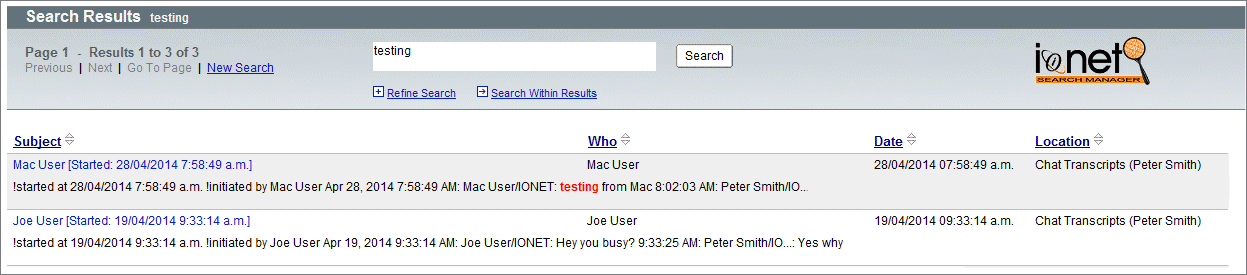
This means users can search their Mail, Archives, Chats, Applications and File Systems, at the same time, from anywhere in the Notes Client.

And they don't need to do anything - if they have chats on their PC, they'll be automatically available for searching.

To try it out yourself, just download a demo from http://www.ionetsoftware.com/search.


Search Interface


Results


For any other types of Notes searching, please visit http://www.ionetsoftware.com/search.
 

Monday, 17 March 2014

Adding Search Options to iNotes Mobile Search

To complete our iNotes Mobile Search product - giving mobile users full access to all of their historical mail data - we've added user search options.

Administrators can still default and/or hide whatever settings they want, but this allows users more control over their mobile search environment.

This makes it even easier for them to find any mail (including archives) when on the road.


1. Mobile Home (with new Search icon)


2. Search Interface


3. Search Options


4. Searching


5. Results


For more information, please visit http://www.ionetsoftware.com/inotes.

Sunday, 9 February 2014

New video - iNotes Mobile Searching

To better demonstrate our iNotes Mobile search product (shown below), we've added a YouTube video to the product page here http://www.ionetsoftware.com/inotes.

The function of this tool is to expose ALL Notes Mail & Archives to the iNotes Mobile Client, thereby enhancing Mobile Mail capabilities for either iNotes or Traveler Clients.

To see this in action, please visit the link above.

1. iNotes Mobile Home, with new Search icon


2. iNotes Mobile Search UI


3. iNotes Mobile Searching  


4. iNotes Mobile Results