At the start of this year, we added PDF support to our FT Search Manager product.
This allows Notes search results to be saved directly as PDFs, either after a Discovery/Compliance search, or after normal Mail & Archive searching.
For example, let's say you have a legal requirement to provide copies of all email sent between your environment and 123.com during 2015.
1. Specified power users can run a Discovery/Compliance search across all mail files and archives in the environment, select the desired results, and export them to PDF.
2. Individual users can perform their own searches in response to an information-gathering request, select the relevant email, and export it to PDF.
Metadata is captured, the PDF format is easily controlled via stylesheets, and Administrators manage options for naming PDFs, export locations etc.
The same functionality applies to our Archiver for Notes product, which can now export Notes data directly to PDF (as well as NSF, XML, HTML, PST etc). So in the above example, Administrators could also create archiving criteria with an @formula and archive all matching emails to PDF, leaving the source data untouched.
For more information, demos & downloads, please visit the FT Search Manager page.
In general, mail files contain a lot of duplicated data, due to the 'Reply With History' function.
So if you search for a phrase in the first email of a thread, you'll probably receive results from ALL the other emails in the thread as well, which clogs up the result set and makes it harder to find your target.
The IONET FT Search Manager now optionally allows users to de-duplicate mail results, displaying only the latest entry in the thread, containing all information from the rest of the thread.
This makes it much easier to find target data, as you don't have to wade through a lot of very similar, repeated results. Of course you can still search normally if you're looking for a specific email.
Without De-Duplication
With De-Duplication
You can also use our 'Navigate to Query' option to automatically move to the first instance of the search term used, which speeds up the target identification process.
And seeing as email is person-person communication, specifying a name in the query (or a domain name) increases search accuracy significantly.
Try it out free of charge and with no obligation, and we think you'll be surprised at the results.
The IONET FT Search Manager - Targeted Notes searching
In a recent webcast, IBM demonstrated several aspects of the search capabilities in IBM Mail Next.
Once of these was 'faceted search', which allows users to choose elements of the result set (facets) and refine their query using that data.
To show how our search product, the FT Search Manager, can also provide faceted searching, we've put together the short video below (the other Mail Next search functionality mentioned, searching Sametime Chats Transcripts, we can already do).
Please note that in our product you can construct search results using any combinations of fields, text and @formulas. In all cases, the tool will correctly identify the type of result data (text, mail address, date, number etc), and allow you to select facets based on that. For example, an Email address will let you choose the sender or domain, a Date will let you choose various timeframes around the selected date, a Number will let you add margins to the selected number etc. And this works for any application you search, not just Mail.
To try this yourself, please download the no-obligation, no-install demo from http://www.ionetsoftware.com/search, and start searching.
FTSM V6 Faceted Search Demo
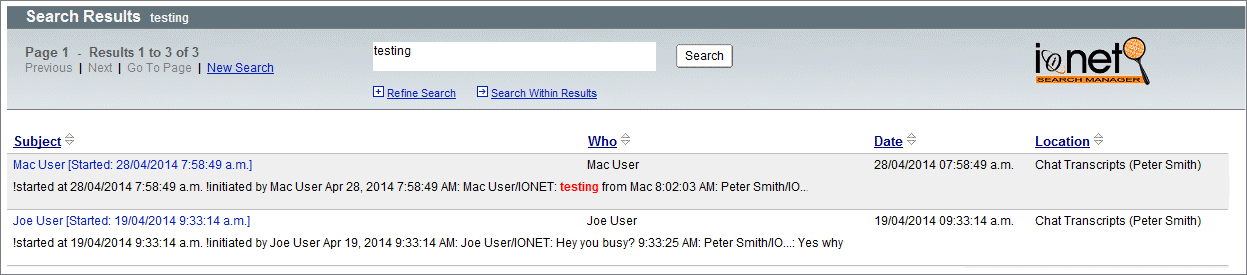
To further extend our FT Search Manager product, we've added the ability to index and search local Sametime Chat Transcripts.
This means users can search their Mail, Archives, Chats, Applications and File Systems, at the same time, from anywhere in the Notes Client.
And they don't need to do anything - if they have chats on their PC, they'll be automatically available for searching.
To try it out yourself, just download a demo from http://www.ionetsoftware.com/search.
Search Interface
Results
To complete our iNotes Mobile Search product - giving mobile users full access to all of their historical mail data - we've added user search options.
Administrators can still default and/or hide whatever settings they want, but this allows users more control over their mobile search environment.
This makes it even easier for them to find any mail (including archives) when on the road.
1. Mobile Home (with new Search icon)
2. Search Interface
3. Search Options
4. Searching

5. Results
For more information, please visit http://www.ionetsoftware.com/inotes.
To better demonstrate our iNotes Mobile search product (shown below), we've added a YouTube video to the product page here http://www.ionetsoftware.com/inotes.
The function of this tool is to expose ALL Notes Mail & Archives to the iNotes Mobile Client, thereby enhancing Mobile Mail capabilities for either iNotes or Traveler Clients.
To see this in action, please visit the link above.
1. iNotes Mobile Home, with new Search icon
2. iNotes Mobile Search UI
3. iNotes Mobile Searching
4. iNotes Mobile Results
The Problem
In the standard iNotes environment, Mobile Clients (e.g. using a Smartphone) have no search capability at all, and Full Clients (using a Browser) can only search the mail file that's currently in use.
Therefore to find and use an existing email with the Mobile Client, you have to start at the latest email, and scroll backwards until you find it. To find an email in an archive database, you have to open that archive individually, and then start scrolling backwards through the pages.
This is impractical for normal use, and the email is too easily missed.
The Solution
The FT Search Manager now allows users to search their active Mail, AND all server-based Archives (regardless of actual server), at the same time, using either the iNotes Mobile or iNotes Full Client.
This makes iNotes much more useful, because users can quickly and easily find any email they want, regardless of its date or location, use it (e.g. Reply / Forward), then return directly to the search results, or to the mail file.
The search environment is configured automatically for each user - requiring no Administrator intervention - and the iNotes search environment itself installs with a single click.
1. iNotes Mobile Home, with new Search icon
2. iNotes Mobile Search UI
3. iNotes Mobile Searching
4. iNotes Mobile Results
Full iNotes Searching is also available, allowing search of Mail and all server-based Archives;
1. iNotes Full Client Search UI
2. iNotes Full Client Search Results
To test this in your own environment, just add our demo database to your iNotes server, then install iNotes searching using the Setup Wizard.
For more information, please visit http://www.ionetsoftware.com/search.
Over the past month we've added some new features to the FT Search Manager. These are;
1. Attachment Name searching.
Which allows you to search attachment names within documents, not possible with standard Notes searching. For example, you can search on strings like "Budget 2014", wildcards like '*.xls', or multiple operators like 'xls OR pdf'. You can also combine those queries with normal queries, e.g. to find all PDFs sent to acme.com in the last 3 months. This functionality also applies to Discovery/Compliance searching.
2. Navigate to Query
The ability to automatically navigate to the first query word when opening results.
3. New default 'Result Processing' options.
Each customer can update this functionality to their own requirements.
4. Shared Mail support
The ability to automatically make Shared Mail databases available for searching, either to all users in the ACL, or specific users.
For more information, or demo software, please visit http://www.ionetsoftware.com/search.
Next, we'll add new functionality for iNotes mobile searching, installed automatically;
1. iNotes Home (note the new Search Icon)
2. Search Interface
3. Searching
4. Results
Earlier this month, we ran a survey with our FT Search Manager users.
We asked them how much time, per employee per week, they thought the FT Search Manager was saving them.
The average answer was 1 hour 23 minutes per person, per week. That equates to a saving of 8.3 days per person, per year, as described by the users themselves.
Note that we restricted the survey results to 'general' searching only, e.g. Mail/Archive & Application searching, because companies using the FT Search Manager for Discovery/Compliance searching have specialised search requirements, saving even more time, as shown below in the Appendix.
Saving each user over 8 days per year is a huge efficiency improvement. And because the FT Search Manager has a once-only, per-user price between $3 - $13 per user (depending on volume), it's also a fantastic ROI.
Example
A company with 1000 users implements the FT Search Manager, with a total product cost (once-only), of $7750. After 1 year, they've saved 66,400 hours, or 8300 days.
That's the equivalent of adding another 33 employees. And at an average US salary of $48,000*, well over $1,000,000 in potential productivity gains.
And the great thing is, the same gains are made year after year.
This is achieved because more efficient search tools make much better use of your existing data. In this case it's our search tool, but it could be any.
For more information, demonstrations, or to set up a trial, please visit http://www.ionetsoftware.com/search.
* source: http://www.ofm.wa.gov/trends/economy/fig102.asp
Appendix: Specialist Searching
Survey responses received from companies using the FT Search Manager for Discovery/Compliance/Specialist searching;
"Well FT Search Manager is now an absolute 'must' for XXX. Because of the volume of data we have to split it across multiple databases. And what the users are searching for is the number of times a particular device failure for a specified device from a particular manufacturer has happened in the last n months. The results will be in a minimum of 2 Notes databases - active and relatively recently completed investigations. ......So they use it every day, a lot. Anything up to 40 people use it to process 250 - 300 reports a week. If it saves them 5 minutes per report then that would be up to 1500 minutes a week."
"It can save between 20 minutes a week to many hours. It is most useful as an administrator when I get asked to perform a legal discovery search where I can search for a string of words in a date range in 3000 odd email archives. I could not do this previously."
"For us, it's about how much time it saves each time we get an open records (Discovery) request. In the past it would take often several hours per request (about 4 requests per month). Now it takes a maximum of 30 minutes per request. The other benefit is that the search is consistent across mailboxes and the criteria can be printed for future reference."
"Our Legal department request me to do a search over a number of user's databases (incl archived mail ) and export all data to an external harddisk. I have done this several times and I could not have done this without the FT Search tool."
"What it did do at the time when we used it was save us 100's of man hours sifting through mail files and collating that into results"
The latest version of the FT Search Manager allows you to 'Search Within Results' in the Notes Client.
This means that when searching your Mail & Archives, Applications, or performing Discovery/Compliance searching, you can search within the result set multiple times, and also back out each step (e.g. to change a search term, correct a typo etc).
Refining a search in this way makes it a lot easier to find target information.
For example, a search of Mail & Archives for 'IBM', initially returns 2404 results;
Then Search Within Results for 'partner*';
Total now = 1492 results
Search Within Results again for 'PWCS' (total now = 34 results)
Search Within Results again for 'signed' (total now = 9 results)
Search Within Results again for 'PSWWUA' (it's the wrong spelling, so no results)
Therefore back out 1 level via the "Undo Search Within Results", to get back to the 'Signed' query (9 results). Note you can keep backing out the Search Within Results until you're back to your original query.
Now Search Within Results again on the correct term 'PWSWUA' (total = 3 results)
Proximity Operator
We've also added a NEAR proximity operator, which can be more accurate than AND.
For example, a search for Mark AND Partner returns 90 results;
whereas a search for Mark NEAR Partner returns only 8 results;
'NEAR' is defined as being within 10 words, but you can also define that yourself, e.g. to 20 words
You can also combine the NEAR operator with Search Within Results;
To try it yourself, please just download from http://www.ionetsoftware.com/search.
During the upgrade to R9, we extended our File Indexer to automatically index the content of ZIP files (the File Indexer is an extension to the FT Search Manager, and allows you to index & search doc, docx, xls, xlsx, ppt, pptx, odt, odp, ods, pdf, vsd, wpd, txt, htm and html files on your local PC or server-based File Systems. More information can be found here).
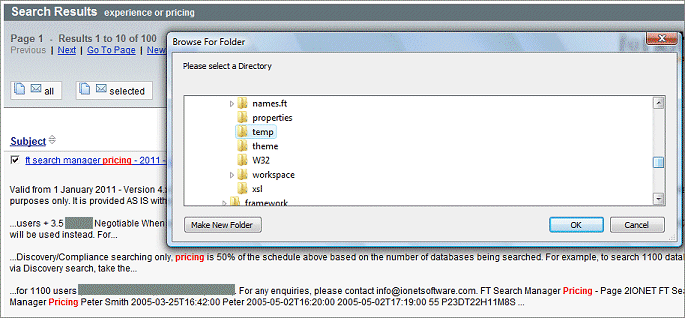
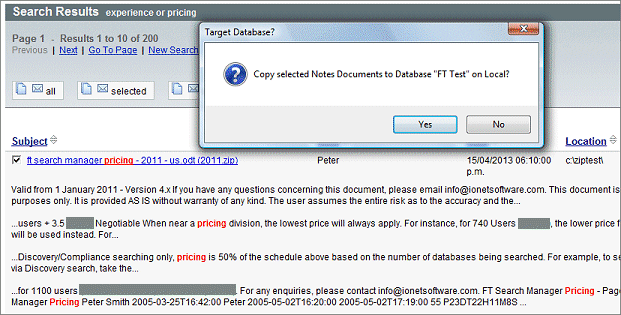
In addition, the FT Search Manager itself now allows you to select and copy File System results to another location, or attach them to a Notes database.
This makes 'discovery-style' searching for users much easier, because they can search their local PC at the same time as Mail & Archives, find all relevant data (either in email or files), then 'process' it, e.g. copy it elsewhere, perhaps in response to a litigation request.
Shown below are the default processing options - you can easily customise or add your own.
1. Search (Notes Client)
2. Select Results (Notes Client). Note this OpenOffice document is within a ZIP file on the c: drive, yet you can see the contents quite easily.
3. Define ZIP handling.
4. Define File handling.
5. Specify File System copy location.
6. Specify Notes data copy location.
7. Processing Complete.
For more information, please visit the FT Search Manager page.