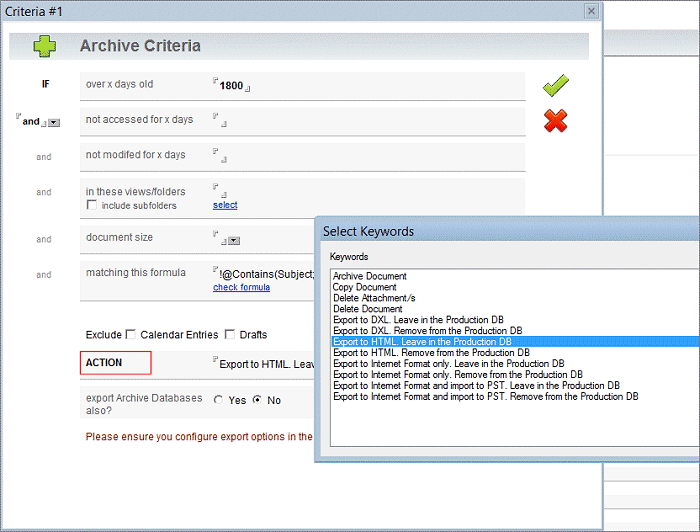
Earlier this month, our Archiver for Notes product was extended to export Notes Mail, Applications and Quickr to HTML, in addition to exporting Notes Mail to Internet Formats and PST, and normal NSF archiving.
Exporting to HTML occurs via archiving to DXL, then transforming that DXL to HTML via XSLT Stylesheets. This allows storage of Notes data as static, non-proprietary HTML.
This process now extends further to transform DXL to XML, ready for use in other products. Example XSLT Stylesheets to do this are stored as Pages, and you can modify these or add your own.
This means you can export some parts of your Notes environment (e.g. Mail) to common internet formats or PST, other elements (e.g. old applications, IBM Quickr) to HTML, and specific newer elements (e.g. application data less than 5 years old) to XML for migration to other platforms.
The process is;
1. Select your target data, export method and stylesheet.
2. Stylesheets are stored as Pages in the Archiver Config database, so you can use these, customise them, or add your own.
3. Notes data is then exported to the target XML.
You can choose to leave the Notes data intact after exporting, meaning you can run the process as many times as you want.
For more information or a free, no-obligation trial version, please see the IONET Archiver for Notes.
Showing posts with label export lotus notes. Show all posts
Monday, 22 June 2015
Monday, 8 June 2015
Archiving from Notes to HTML
Since March, it's been possible to use our Notes Archiving tool to archive Notes Mail to Internet Formats and PST, as well as perform normal Notes (to NSF) archiving.
We've now added the ability to archive Notes Mail and Applications to HTML and DXL/XML as well.
This allows Administrators to easily target specific Notes data, then process it based on their requirements, e.g. archiving to Notes itself, storing it in a non-proprietary format like HTML or XML, or migrating it for use with another application.
For example, to migrate to Outlook;
1. Your first archive criteria might first remove all mail with the phrase '[SPAM]' in the Subject.
2. Your second criteria might then archive all historical mail over 5 years old, and without the phrase '[HR]' in the Subject, to read-only HTML.
3. Your third criteria might then archive all mail 1-4 years old to PSTs named "Username" Notes Mail 2011 - 2014.
4. Your fourth criteria might archive all mail less than 1 year old to PSTs named "Username" Notes Mail 2015.
OR;
1. Archive all mail over 1 month old to PSTs named "Username" Notes Mail, leaving the original mail intact. This can be done over time without users even being aware of it, in order to migrate the majority of user data (as mail doesn't tend to change too much after the first month).
2. At a designated cutover date, archive any changes plus the remaining data, resulting in all Notes Mail being available in PSTs.
OR you could;
1. Select custom Notes applications and archive all data over 6 years old to HTML.
2. Archive all remaining data to DXL/XML, transform it via XSLT, and use it in another application.
There are multiple customisation options, and you can modify our stylesheets to suit your own processing requirements.
1. Select Archive Criteria (or you can just archive the entire database).
2. Exported Mail Results in HTML.
3. Exported Application Results in HTML.
4. Exported Mail Results in PST.
For more information or a free, no-obligation trial version, please see the IONET Archiver for Notes.
We've now added the ability to archive Notes Mail and Applications to HTML and DXL/XML as well.
This allows Administrators to easily target specific Notes data, then process it based on their requirements, e.g. archiving to Notes itself, storing it in a non-proprietary format like HTML or XML, or migrating it for use with another application.
For example, to migrate to Outlook;
1. Your first archive criteria might first remove all mail with the phrase '[SPAM]' in the Subject.
2. Your second criteria might then archive all historical mail over 5 years old, and without the phrase '[HR]' in the Subject, to read-only HTML.
3. Your third criteria might then archive all mail 1-4 years old to PSTs named "Username" Notes Mail 2011 - 2014.
4. Your fourth criteria might archive all mail less than 1 year old to PSTs named "Username" Notes Mail 2015.
OR;
1. Archive all mail over 1 month old to PSTs named "Username" Notes Mail, leaving the original mail intact. This can be done over time without users even being aware of it, in order to migrate the majority of user data (as mail doesn't tend to change too much after the first month).
2. At a designated cutover date, archive any changes plus the remaining data, resulting in all Notes Mail being available in PSTs.
OR you could;
1. Select custom Notes applications and archive all data over 6 years old to HTML.
2. Archive all remaining data to DXL/XML, transform it via XSLT, and use it in another application.
There are multiple customisation options, and you can modify our stylesheets to suit your own processing requirements.
1. Select Archive Criteria (or you can just archive the entire database).
2. Exported Mail Results in HTML.
3. Exported Application Results in HTML.
4. Exported Mail Results in PST.
For more information or a free, no-obligation trial version, please see the IONET Archiver for Notes.
Monday, 9 March 2015
New Export tool for Notes Mail & Archives
IBM (Lotus) Notes is an excellent product, but it's inevitable that some users will eventually migrate to other platforms.
The new IONET NSF Exporter allows users themselves to export local or server-based Notes Mail, Archives, Calendars, Tasks, Contacts and Journals to internet standard formats (*.eml, *.ics, *.vcf etc), then optionally to PST, ready for immediate use in Microsoft Outlook.
For an Administrator-run export via the Domino Server, please see the Archiver for Notes.
For example, after migrating to Exchange, users may still have local Notes Mail archives left on their PCs. The NSF Exporter allows them to migrate those databases to PST, at their convenience, and without requiring Server resources.
The tool requires a Notes Client only, exporting in the background. It can export local or server-based databases, running locally or from a Server.
Full fidelity is assured, including attachments, graphics & doclinks, for Mail, Calendars, Tasks, Contacts & Journals, with a range of options providing full control for the Administrator.
For a quick preview, please click the Thumbnails, then navigate around.
Default Settings

Export Settings

Description
The NSF Exporter allows users to export multiple Notes Databases to internet file formats, then optionally convert those files to PST. The tool can create one PST per NSF, or new PSTs when the existing export PST reaches a specified size.
Users create an export definition for each Notes Database they want to export, specify the export settings they prefer (e.g. skipping documents older than X days, skipping certain attachment types, decrypting documents etc), then just start the export. Administrators control what options users see.
The export process runs in the background of the Notes Client, leaving the Client available for other tasks, and a status of the export is displayed at all times, along with an estimated time to completion.
The user can also stop exporting at any time, restarting at a later time.
At the completion of the export, users can manage the exported files as they want, or simply open the resulting PST files in Outlook.
Key Features
For more information, downloads and demos, please visit the IONET NSF Exporter.
The new IONET NSF Exporter allows users themselves to export local or server-based Notes Mail, Archives, Calendars, Tasks, Contacts and Journals to internet standard formats (*.eml, *.ics, *.vcf etc), then optionally to PST, ready for immediate use in Microsoft Outlook.
For an Administrator-run export via the Domino Server, please see the Archiver for Notes.
For example, after migrating to Exchange, users may still have local Notes Mail archives left on their PCs. The NSF Exporter allows them to migrate those databases to PST, at their convenience, and without requiring Server resources.
The tool requires a Notes Client only, exporting in the background. It can export local or server-based databases, running locally or from a Server.
Full fidelity is assured, including attachments, graphics & doclinks, for Mail, Calendars, Tasks, Contacts & Journals, with a range of options providing full control for the Administrator.
For a quick preview, please click the Thumbnails, then navigate around.
Default Settings
Export Settings
Description
The NSF Exporter allows users to export multiple Notes Databases to internet file formats, then optionally convert those files to PST. The tool can create one PST per NSF, or new PSTs when the existing export PST reaches a specified size.
Users create an export definition for each Notes Database they want to export, specify the export settings they prefer (e.g. skipping documents older than X days, skipping certain attachment types, decrypting documents etc), then just start the export. Administrators control what options users see.
The export process runs in the background of the Notes Client, leaving the Client available for other tasks, and a status of the export is displayed at all times, along with an estimated time to completion.
The user can also stop exporting at any time, restarting at a later time.
At the completion of the export, users can manage the exported files as they want, or simply open the resulting PST files in Outlook.
Key Features
- Automatic Setup & Operation.
- Runs locally or server-based, in the background of the Notes Client, exporting local or server-based databases.
- Fully converts Mail, Archives, Calendars, Tasks, Contacts and Journals, including images, attachments & doclinks.
- Does not require Microsoft Outlook.
- Creates one PST per NSF, or multiple PSTs based on size.
- Allows users to process or skip specific attachment types.
- Allows users to export data based on date.
- Allows users to export data based on size.
- Allows users to decrypt documents during export.
- Includes real-time progress display.
- Supports Unicode character migration, including multiple character sets.
- Retains meta data and Folder structures.
- Leaves original data intact.
- Fully translatable UI.
- Automatically attempts to fix known errors.
- Logs all errors and actions.
For more information, downloads and demos, please visit the IONET NSF Exporter.
Subscribe to:
Posts (Atom)