Earlier this month, we ran a survey with our FT Search Manager users.
We asked them how much time, per employee per week, they thought the FT Search Manager was saving them.
The average answer was 1 hour 23 minutes per person, per week. That equates to a saving of 8.3 days per person, per year, as described by the users themselves.
Note that we restricted the survey results to 'general' searching only, e.g. Mail/Archive & Application searching, because companies using the FT Search Manager for Discovery/Compliance searching have specialised search requirements, saving even more time, as shown below in the Appendix.
Saving each user over 8 days per year is a huge efficiency improvement. And because the FT Search Manager has a once-only, per-user price between $3 - $13 per user (depending on volume), it's also a fantastic ROI.
Example
A company with 1000 users implements the FT Search Manager, with a total product cost (once-only), of $7750. After 1 year, they've saved 66,400 hours, or 8300 days.
That's the equivalent of adding another 33 employees. And at an average US salary of $48,000*, well over $1,000,000 in potential productivity gains.
And the great thing is, the same gains are made year after year.
This is achieved because more efficient search tools make much better use of your existing data. In this case it's our search tool, but it could be any.
For more information, demonstrations, or to set up a trial, please visit http://www.ionetsoftware.com/search.
* source: http://www.ofm.wa.gov/trends/economy/fig102.asp
Appendix: Specialist Searching
Survey responses received from companies using the FT Search Manager for Discovery/Compliance/Specialist searching;
"Well FT Search Manager is now an absolute 'must' for XXX. Because of the volume of data we have to split it across multiple databases. And what the users are searching for is the number of times a particular device failure for a specified device from a particular manufacturer has happened in the last n months. The results will be in a minimum of 2 Notes databases - active and relatively recently completed investigations. ......So they use it every day, a lot. Anything up to 40 people use it to process 250 - 300 reports a week. If it saves them 5 minutes per report then that would be up to 1500 minutes a week."
"It can save between 20 minutes a week to many hours. It is most useful as an administrator when I get asked to perform a legal discovery search where I can search for a string of words in a date range in 3000 odd email archives. I could not do this previously."
"For us, it's about how much time it saves each time we get an open records (Discovery) request. In the past it would take often several hours per request (about 4 requests per month). Now it takes a maximum of 30 minutes per request. The other benefit is that the search is consistent across mailboxes and the criteria can be printed for future reference."
"Our Legal department request me to do a search over a number of user's databases (incl archived mail ) and export all data to an external harddisk. I have done this several times and I could not have done this without the FT Search tool."
"What it did do at the time when we used it was save us 100's of man hours sifting through mail files and collating that into results"

Wednesday, 28 August 2013

Wednesday, 21 August 2013
Searching Within Results in the Notes Client
The latest version of the FT Search Manager allows you to 'Search Within Results' in the Notes Client.
This means that when searching your Mail & Archives, Applications, or performing Discovery/Compliance searching, you can search within the result set multiple times, and also back out each step (e.g. to change a search term, correct a typo etc).
Refining a search in this way makes it a lot easier to find target information.
For example, a search of Mail & Archives for 'IBM', initially returns 2404 results;

Then Search Within Results for 'partner*';

Total now = 1492 results

Search Within Results again for 'PWCS' (total now = 34 results)

Search Within Results again for 'signed' (total now = 9 results)

Search Within Results again for 'PSWWUA' (it's the wrong spelling, so no results)

Therefore back out 1 level via the "Undo Search Within Results", to get back to the 'Signed' query (9 results). Note you can keep backing out the Search Within Results until you're back to your original query.
Now Search Within Results again on the correct term 'PWSWUA' (total = 3 results)

Proximity Operator
We've also added a NEAR proximity operator, which can be more accurate than AND.
For example, a search for Mark AND Partner returns 90 results;

whereas a search for Mark NEAR Partner returns only 8 results;

'NEAR' is defined as being within 10 words, but you can also define that yourself, e.g. to 20 words

You can also combine the NEAR operator with Search Within Results;

To try it yourself, please just download from http://www.ionetsoftware.com/search.
This means that when searching your Mail & Archives, Applications, or performing Discovery/Compliance searching, you can search within the result set multiple times, and also back out each step (e.g. to change a search term, correct a typo etc).
Refining a search in this way makes it a lot easier to find target information.
For example, a search of Mail & Archives for 'IBM', initially returns 2404 results;
Then Search Within Results for 'partner*';
Total now = 1492 results
Search Within Results again for 'PWCS' (total now = 34 results)
Search Within Results again for 'signed' (total now = 9 results)
Search Within Results again for 'PSWWUA' (it's the wrong spelling, so no results)
Therefore back out 1 level via the "Undo Search Within Results", to get back to the 'Signed' query (9 results). Note you can keep backing out the Search Within Results until you're back to your original query.
Now Search Within Results again on the correct term 'PWSWUA' (total = 3 results)
Proximity Operator
We've also added a NEAR proximity operator, which can be more accurate than AND.
For example, a search for Mark AND Partner returns 90 results;
whereas a search for Mark NEAR Partner returns only 8 results;
'NEAR' is defined as being within 10 words, but you can also define that yourself, e.g. to 20 words
You can also combine the NEAR operator with Search Within Results;
To try it yourself, please just download from http://www.ionetsoftware.com/search.
Monday, 13 May 2013
Searching Applications & File Systems directly from the Notes Client
New functionality in the R9 Notes Client has finally allowed us to integrate our search tool properly into the Notes Search List, via Widget, as below;
 You could for example search your Notes Applications & Application Suites, server-based File Systems, and Quickr, all at the same time and directly from Notes. You can then add your Mail, Mail Archives, and local PC files to the list. That's a quick way to search a lot of information, and therefore save a lot of time.
In addition, results come back with a lot more information than Notes usually provides, allowing easy target identification directly from the results themselves.

And as well as just searching, you can perform actions on the results, for example in response to litigation/information requests. Default actions including copying results to another location (Notes data into databases, Files to a selected Directory), but you can also customise these options and add your own handling.

The result is a comprehensive search tool for the Notes Client (and for Browsers, iNotes/DWA, and Web Services).
Aside from the plug-in, no other installation is required on the Client, and searching also works locally.
More information, demos and downloads are available on the FT Search Manager Page.
In addition, results come back with a lot more information than Notes usually provides, allowing easy target identification directly from the results themselves.
And as well as just searching, you can perform actions on the results, for example in response to litigation/information requests. Default actions including copying results to another location (Notes data into databases, Files to a selected Directory), but you can also customise these options and add your own handling.
The result is a comprehensive search tool for the Notes Client (and for Browsers, iNotes/DWA, and Web Services).
Aside from the plug-in, no other installation is required on the Client, and searching also works locally.
More information, demos and downloads are available on the FT Search Manager Page.
Monday, 15 April 2013
'Discovery-style' searching for Notes users
During the upgrade to R9, we extended our File Indexer to automatically index the content of ZIP files (the File Indexer is an extension to the FT Search Manager, and allows you to index & search doc, docx, xls, xlsx, ppt, pptx, odt, odp, ods, pdf, vsd, wpd, txt, htm and html files on your local PC or server-based File Systems. More information can be found here).
In addition, the FT Search Manager itself now allows you to select and copy File System results to another location, or attach them to a Notes database.
This makes 'discovery-style' searching for users much easier, because they can search their local PC at the same time as Mail & Archives, find all relevant data (either in email or files), then 'process' it, e.g. copy it elsewhere, perhaps in response to a litigation request.
Shown below are the default processing options - you can easily customise or add your own.
1. Search (Notes Client)

2. Select Results (Notes Client). Note this OpenOffice document is within a ZIP file on the c: drive, yet you can see the contents quite easily.

3. Define ZIP handling.

4. Define File handling.

5. Specify File System copy location.
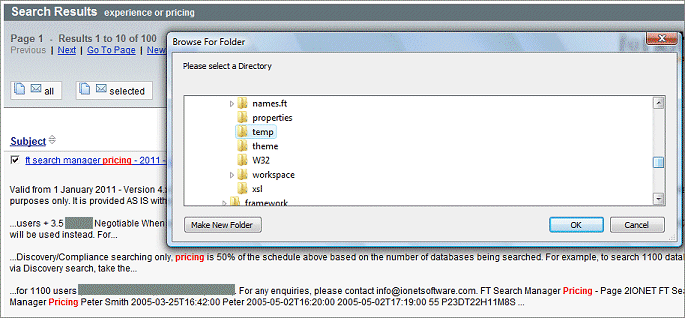
6. Specify Notes data copy location.
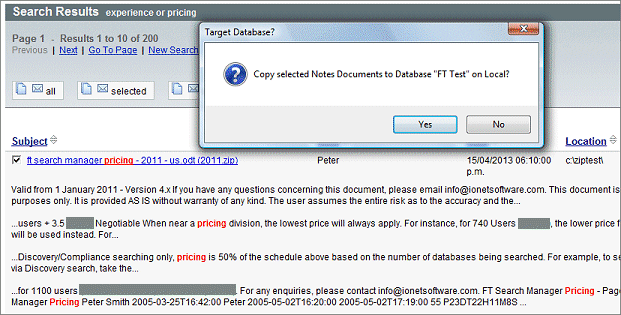
7. Processing Complete.

For more information, please visit the FT Search Manager page.
In addition, the FT Search Manager itself now allows you to select and copy File System results to another location, or attach them to a Notes database.
This makes 'discovery-style' searching for users much easier, because they can search their local PC at the same time as Mail & Archives, find all relevant data (either in email or files), then 'process' it, e.g. copy it elsewhere, perhaps in response to a litigation request.
Shown below are the default processing options - you can easily customise or add your own.
1. Search (Notes Client)
2. Select Results (Notes Client). Note this OpenOffice document is within a ZIP file on the c: drive, yet you can see the contents quite easily.
3. Define ZIP handling.
4. Define File handling.
5. Specify File System copy location.
6. Specify Notes data copy location.
7. Processing Complete.
For more information, please visit the FT Search Manager page.
Monday, 8 April 2013
R9 support for all IONET products
We're pleased to announce that all IONET products now support Notes/Domino R9 Social Edition.
The main updates are;
Change Manager (http://www.ionetsoftware.com/change)
Support for all new R9 Directory fields & functions.
Notes Client
 Browser (via User Reporting)

Demo video here.
FT Search Manager (http://www.ionetsoftware.com/search)
New optional CSS-based UI for the iNotes Social Edition (note new search bar).


Demo video here.
Archiver for Notes (http://www.ionetsoftware.com/archiving)
New optional CSS-based UI for the iNotes Social Edition (note new search bar & menu items).

Demo videos here.
The main updates are;
Change Manager (http://www.ionetsoftware.com/change)
Support for all new R9 Directory fields & functions.
Notes Client


Demo video here.
FT Search Manager (http://www.ionetsoftware.com/search)
New optional CSS-based UI for the iNotes Social Edition (note new search bar).


Demo video here.
Archiver for Notes (http://www.ionetsoftware.com/archiving)
New optional CSS-based UI for the iNotes Social Edition (note new search bar & menu items).

Thursday, 14 February 2013
Adding value to Lotus Notes
One of our partners asked recently how they could add value to Notes for their customers.
To that end, we've put together the following brief guide of how we think our software can add value to Notes and save customers money.
1.
Adding Value for Users


2.
Adding Value for Administrators


3.
Adding Value for Developers

To that end, we've put together the following brief guide of how we think our software can add value to Notes and save customers money.
1.
Adding Value for Users
FT Search Manager
If
every Notes user spends just 5 minutes a day (a reasonably conservative
number) looking for information - say an email they sent a month ago,
a phone number in a customer quote, or technical information
contained in a PDF, that equates to 25 minutes per week, or about 20
hours a year.
That
means that for an average annual salary of $44,000, that 5 minutes a
day looking for information costs around
$400/year, per user.
However
giving users an effective search tool that allows them to find that
information quickly and easily, costs around $10/year, per user
(depending on user volumes).
Therefore
an integrated search tool that allows each user to search their Mail,
Archives, custom Notes Applications, Quickr, local File Systems and
server-based File Systems - and all at the same time - pays itself
off within about a week. The value added after that is huge.
For
more information, demonstrations and downloads, please visit
http://www.ionetsoftware.com/search.

Archiver for Notes
For
maximum application efficiency, redundant data should be archived.
Archiving data from Lotus Notes applications (including Mail) adds value by increasing the application usability, speed, and effectiveness, while still making older data available if required (and without IT intervention).
This means the user is accessing the most current and most relevant data, but can still easily get to older data when required, including via the search methods mentioned above.
For more information, demonstrations and downloads, please visit http://www.ionetsoftware.com/archiving.
Archiving data from Lotus Notes applications (including Mail) adds value by increasing the application usability, speed, and effectiveness, while still making older data available if required (and without IT intervention).
This means the user is accessing the most current and most relevant data, but can still easily get to older data when required, including via the search methods mentioned above.
For more information, demonstrations and downloads, please visit http://www.ionetsoftware.com/archiving.


2.
Adding Value for Administrators
Archiver for Notes
As
above, archiving Lotus Notes applications increases their efficiency.
Archiving also adds value for Administrators by increasing
Backup/Restore efficiency, and managing data storage requirements in
a smarter way.
The Archiver for Notes adds further value by performing all functions automatically, even to the extent of updating itself with new versions & bugfixes. This leaves Administrators more time for other tasks.
In addition, archiving is virtually transparent to users, resulting in less Service Desk calls.
For more information, demonstrations and downloads, please visit http://www.ionetsoftware.com/archiving.
The Archiver for Notes adds further value by performing all functions automatically, even to the extent of updating itself with new versions & bugfixes. This leaves Administrators more time for other tasks.
In addition, archiving is virtually transparent to users, resulting in less Service Desk calls.
For more information, demonstrations and downloads, please visit http://www.ionetsoftware.com/archiving.

Change Manager
In
any IT environment, things change. In a native Domino environment,
it's often impossible to know who changed what setting, when and why.
The Change Manager for Domino adds value by actively enforcing Change
Control in the environment, as well as by monitoring changes and
providing regular audits.
This lets Administrators see what changed, who performed the change, and why.
As well as preventing possible problems (e.g. by setting incorrect values), the Change Manager also aids in problem resolution - by showing what recent changes could have caused a problem, or even if Domino was the problem cause at all (if nothing changed in Domino, perhaps the problem cause lies elsewhere).
For more information, demonstrations and downloads, please visit http://www.ionetsoftware.com/change.
This lets Administrators see what changed, who performed the change, and why.
As well as preventing possible problems (e.g. by setting incorrect values), the Change Manager also aids in problem resolution - by showing what recent changes could have caused a problem, or even if Domino was the problem cause at all (if nothing changed in Domino, perhaps the problem cause lies elsewhere).
For more information, demonstrations and downloads, please visit http://www.ionetsoftware.com/change.


3.
Adding Value for Developers
Workflow Manager
Most
custom Notes Applications all handle workflow differently. This is
usually because they were developed by different developers, and/or
at different times. The result is mostly hard-coded workflow,
difficult and time-consuming to change.
The Workflow Manager provides a common, document-based workflow engine for Notes applications, implemented via a single-click.
This adds values for Developers by removing the need to develop and handle workflow individually per database, and provides a consistent, stable and professional workflow interface across all applications.
The result is faster deployment of new or modified applications, as well as providing other benefits such as cross-application Delegation and Approvers.
Users benefit also, because a consistent development approach means easier uptake of new applications.
For more information, demonstrations and downloads, please visit http://www.ionetsoftware.com/workflow.
The Workflow Manager provides a common, document-based workflow engine for Notes applications, implemented via a single-click.
This adds values for Developers by removing the need to develop and handle workflow individually per database, and provides a consistent, stable and professional workflow interface across all applications.
The result is faster deployment of new or modified applications, as well as providing other benefits such as cross-application Delegation and Approvers.
Users benefit also, because a consistent development approach means easier uptake of new applications.
For more information, demonstrations and downloads, please visit http://www.ionetsoftware.com/workflow.

Monday, 26 November 2012
FT Search Manager v5 - Full Notes Mail Integration
We're pleased to announce the availability of FT Search Manager v5, allowing full Notes Mail integration, as shown below. This integration can be implemented into the R853 Standard Client (Mail Files or Templates) via a single click, and provides yet another search method for Notes Clients, in addition to our existing Search Scope, Widget, Actions & Toolbar Icon search methods.
Minimised

Maximised
 The UI is fully translatable (via documents, the Search button here is shown in German), and you can use your own logo, provide your own help functions etc.
To try this in your own environment, please download a demo database here, then open the database and choose to set up Mail & Archive searching (for yourself or others), then select 'Set up searching via Mail File Integration'.

You can either just click the 'Install Mail Integration Search' button to install, or set it up manually following the instructions.
For more information about the FT Search Manager and other forms of searching, please visit the product page here.
Minimised

Maximised

To try this in your own environment, please download a demo database here, then open the database and choose to set up Mail & Archive searching (for yourself or others), then select 'Set up searching via Mail File Integration'.

You can either just click the 'Install Mail Integration Search' button to install, or set it up manually following the instructions.
For more information about the FT Search Manager and other forms of searching, please visit the product page here.
Subscribe to:
Posts (Atom)