Tuesday, 1 May 2012

Speeding up Notes applications

Our FT Search Manager product (http://www.ionetsoftware.com/search) has been around for a while now, and being a search tool, we're always trying to increase it's search speed. The latest version (4.6 - sound familiar?) is a lot faster than previous versions - FYI here's a short YouTube demo showing the faster speed achieved http://www.youtube.com/watch?v=FFcxSQ8PaIM.

If anyone's interested, here are the main methods we used to speed it up;

1. Each multi-threaded search agent only populates up to the first page of results (e.g. 10 results if that's how many results are displaying per page) then writes it's full result set to a storage document. It only populates the first X results because that's the slow part - getting data from each document. The last agent to finish assembles all the results, re-sorts them, then presents them. The first couple of pages are already available, and the remaining stubs are then populated in the background, which means the first page displays in the shortest possible time.

2. Concatenating evaluate statements. We use fields & @formulas to return document data. If there are 4 fields & @formulas required, it's much faster to execute one evaluate statement, e.g. Evaluate(@formula1 : @formula2 : @formula3 : @formula4, NotesDocument), rather than repeating it 4 times.

3. Using NotesDocument.Save only when necessary.

4. Using NotesRichTextItem.GetUnformattedText instead of GetFormattedText.

5. Using Lists to store commonly used databases, views & variables.

6. Using the LS 'Split' function as much as possible.

7. Moving everything unnecessary out of loops.

8. Performing only one @DBLookup to get all required data in one operation, then splitting the results into separate fields.

9. Storing data in Profile documents and only retrieving new data if the relevant option changes.

Hopefully someone finds these points useful.

Wednesday, 11 April 2012

Getting the most from your Notes environment

One of the problems with the continual upgrade cycle of computing (--> Connections, Quickr, XPages etc) is that it doesn't make efficient use of your existing environment - it's like buying a new TV when you could improve your viewing by re-tuning the old one.

Notes has been around for 20+ years, and it's distributed nature means users have their data scattered around many locations - Mail, Archives, Discussions, Document Repositories, File Systems, Apps, Quickr etc.

Over time, finding that information becomes more and more difficult - because users need to know roughly where it is. If they forget that, it can take a long time to find, or just not be found at all. It's surprising how much time (and therefore money) is spent looking for information.

The native Notes search facilities (Domain Search or Search Site - don't mention Extended Search) can search a lot of data and present a lot of results, but they don't present it very well or offer many options for using & refining it. They're fast, but navigating through hundreds of results that all look very similar is really just not useful enough, which is why few companies implement them.


It's much more efficient for users to be able to search only the data sources relevant to them, get easily understood and useful results, then refine their search or re-sort the results as necessary. This is slower than the native search methods, but it's much more accurate. This in turn is more useful, less frustrating, saves wasting time, and therefore saves money.


Giving your users tools to use the data they already have - as well as adding new tools such as Connections & XPages - is the best way to get the most from your Notes environment.

For more information, please see our FT Search Manager
http://www.ionetsoftware.com/search

Monday, 13 February 2012

Search speed improvements

We're pleased to announce that the latest version of the FT Search Manager (v4.3) is at least 25% faster than older versions - and often more, depending on the content being searched.

This was achieved by rewriting the Notes search engine, so that each search thread first identifies the top x documents matching it's criteria & sort options, e.g. 'Person contains *acme*' & 'newest first', and then populates only enough results to make up the first result page.

The last thread to finish this process becomes the 'Sort' thread, sorting the result data from multiple searches/databases, then writing to the Results page. Because there is multiple page content already assembled, this is a very fast process.

After the first page of results displays, the Sort thread continues adding further result data in the background, using stubs set up by the initial search threads.

The initial results are therefore presented much faster, and that makes a difference when you have a large mail file to manage.

http://www.ionetsoftware.com/search


Thursday, 26 January 2012

A better Notes Mail search

Since the start of 2012, we've spent a lot of time adding functions to our FT Search Manager product, specifically for Mail & Archive searching. The results are much, much easier to use, and it's by far the easiest way to find mail you're looking for, no matter it's location.

For example, you can start searching from a Toolbar icon (e.g. anywhere in the Notes Client);


or perhaps an Action in your mail file;


then search using whatever fields & options the Administrator has enabled;


(note the interface is translatable, e.g. 'Zoeken').
 
You then get an easily understood precis of the result set (in Notes), sorted as required, allowing you to quickly find your target document.


If you still can't find what you're looking for, you can change the criteria and re-search, start a new search, or just re-sort the existing results (here the 'Date' column has been re-sorted ascending).


You'll be surprised by how much time you save looking for documents, compared to a 'normal' search. And being a Notes Database, it also works locally.

If you're interested in other types of search, you can also search File Systems, iNotes, Quickr, and any custom Notes apps, via Notes Clients, Browsers, iPads, iPhones, Web Services, Portals and Discovery/Compliance Searching.

For free trial versions & more information, please visit http://www.ionetsoftware.com/lotus-notes-products/lotus-notes-search


Thursday, 17 November 2011

Install, create and execute workflow in under 5 minutes

The following video shows the installation, construction & execution of a Notes workflow in under 5 minutes, using the IONET Workflow Manager, Notes Client and XPages.


You can see more information, or download a demo, here http://www.ionetsoftware.com/workflow.

Wednesday, 19 October 2011

Combined Notes and File System searching

To provide a combined Notes & File System "Desktop" search, allowing users to search their Mail, Archives and local PC at the same time as other data such as Notes Apps, Document Libraries, mapped File Systems and Quickr, the FT Search Manager utilises a separate Notes database, the File Indexer database.

This File Indexer database contains various Java agents, which trawl the defined file systems, either server-based or locally, then uses the Apache open-source POI libraries (http://poi.apache.org and http://pdfbox.apache.org) to extract text from the specified files, add it to dedicated Notes storage databases, and Full-Text index these. So far, it indexes file types doc, docx, xls, xlsx, ppt, pptx, vsd, pdf, txt, htm and html.

These Notes based storage databases are reasonably small (think of them as part of the index) and added automatically to the FT Search Manager. The result allows a Full Text search of the File System contents, including field-level searches on the meta-data, and also use of custom operators, such as "near" ("java near 20 apache" would find documents where 'java' appears within 20 words of 'apache').

Clicking a result opens the file in it's native application, not in Lotus Notes (although if searching via Browser and the Browser supports the application, it will open in a Browser window).

This makes it easy to locate (and process) information, regardless of it's actual location, and even allows iPad, iPhone and other Smartphone users to search File Systems at the same time as Notes-based data.

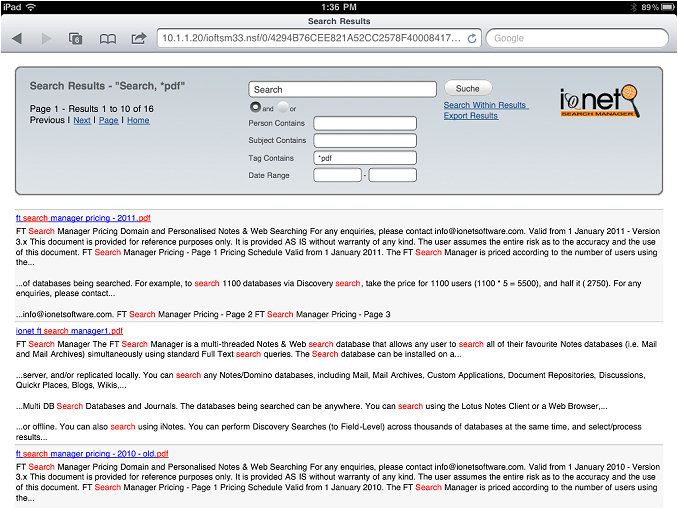
Here's an iPad user running a search. The various search filters such as 'Person Contains' can be mapped to meta-data from each data source, shown/hidden etc.


Searching is also available from various integration points in the Notes Client, Browser, iNotes or Web Service, including Discovery/Compliance searching (Admin, Power User or User) and Notes & Web Portal searching. 

For example, you could use the Web Service to search server-based File Systems, returning results as XML and bypassing the Notes/Domino UI altogether.

For more detail, demonstrations or an obligation-free trial of the Search Manager, please visit http://www.ionetsoftware.com/search.

For a copy of the File Indexer database, please contact us via http://www.ionetsoftware.com/contact

Wednesday, 12 October 2011

Archiver for Notes - Automatic Updates

One of the features that gets most use in our Archiver for Notes and Search Manager products is automatic updating. This is an optional setting that can be used to auto-update the products in a customer environment, most usually to add bugfixes.

Via this procedure, we get notification of errors that occur during archiving (and when archiving millions of documents in remote environments, especially in custom applications, there can be document-related errors).

We then investigate the problem, and if necessary provide a patch for it. This patch can then be automatically applied in the remote environment, and the customer notified as to what was fixed, and why. Alternatively the customer can instead be notified there is a patch available, and download/apply it manually.

Basically the process itself is as follows;

1. Each night, the Archiver contacts our website via a Java agent and checks for a flag indicating there is a newer release available than it is already. If it finds a newer release, it will either;

a) email a listed email address there is a new version to download, the reason for the update, and provide a url to the new template, 

OR 

b) download the new template to a designated location, run fixup on it using a Remote Console call, then create an AdminP request to sign it using the Server ID. The Designer task then updates the design of the production database in the normal way, using the newly downloaded template. 

A second agent then verifies that the new design has been applied correctly, re-enables any agents that were disabled as a result of the update, and advises the listed email address that the design was updated, and for what reason.

Of course we need to manage the connection out of the customers environment (proxies, security etc) and amend the Java security policy on the server to allow our agent to set system properties during execution.

We find this process works very well, and is a useful way to reduce the demands on customers, even when the problem stems from dodgy data in their own environment.

For more details, please contact info@ionetsupport.com.